Brand and experience
Keep screen content consistent with your brand
A corporate announcement may appear in several offices, stores, wards, or departments, with a different message in each place. If every version contains its own logo, fonts, and colors, a branding change becomes a search for copies. Some screens receive the update while others keep an older identity.
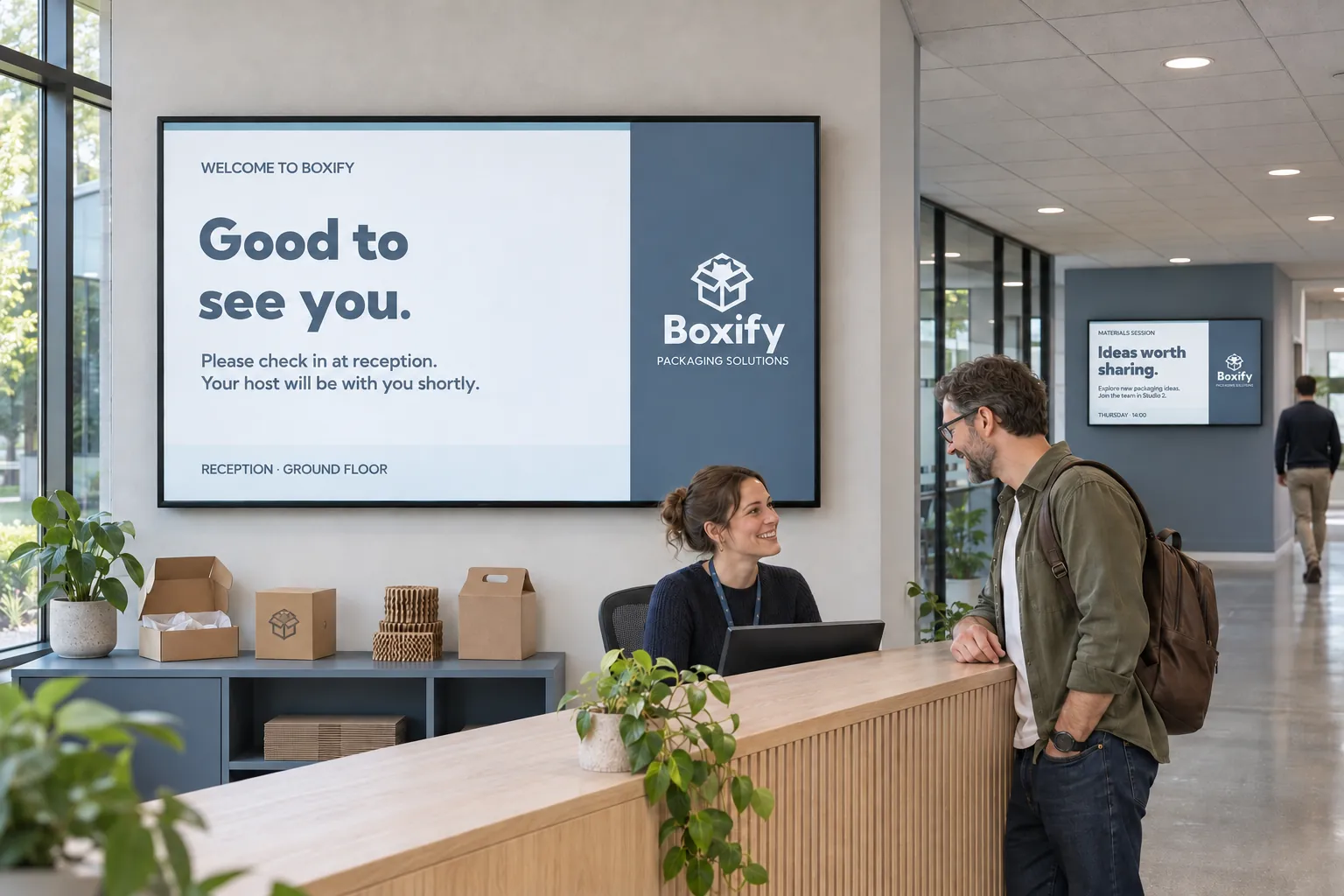
Separate the shared appearance from the messages people maintain locally. Brand owners can then manage common assets, designers can prepare reusable formats, and local publishers can write for their own audiences.
Put shared branding in a theme
Template themes hold logos, backgrounds, colors, and fonts that templates, smart media, and screen layouts can use. Updating a theme changes content using those elements. Custom styling and unrelated static files retain their own appearance.
For example, a designer can prepare an announcement with a theme-based logo, headline, image, and body text. Office or production teams create their own messages from it. The text stays local while the theme supplies the shared fonts and colors. When the corporate identity changes, the designer updates the theme and checks the affected content.
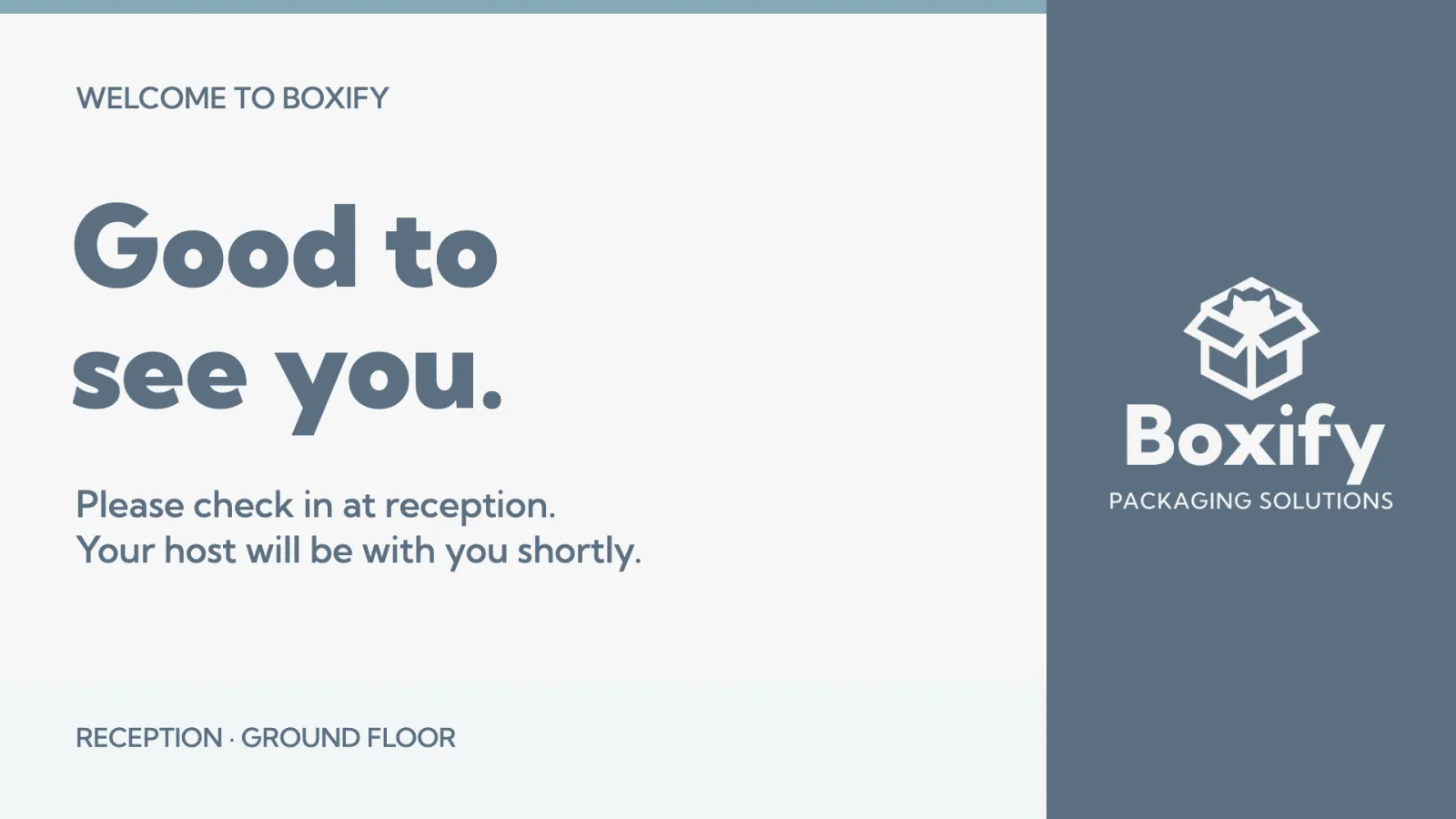
The result depends on how each design uses the theme:
| Content choice | What a shared branding change affects |
|---|---|
| Elements using the theme | Their shared logos, backgrounds, fonts, or colors follow the theme update. |
| Custom choices within a themed design | Those choices keep their own styling. A design can mix shared and custom elements. |
| A static poster with a logo embedded in its image | The poster needs a separate edit. |
Shared updates can affect content already published to screens. Preview representative designs, allow the update to finish, and confirm the result. Themes explains the configuration and update process.
Choose which identity a design follows
Content designed to use the site's default theme takes its branding from that theme. Compatible templates, screen layouts, and Components acquired from Marketplace can follow it too. Changing the site's default theme leaves designs explicitly assigned to another theme with that assignment.
Separate themes can represent brands or sub-brands in the same deployment. Check the assignments before changing shared assets so that each design continues to use the intended identity. Teams adapting content for another brand need the same check; acquiring a design does not mean every visible element automatically follows that brand's theme.
Let local messages reuse the design
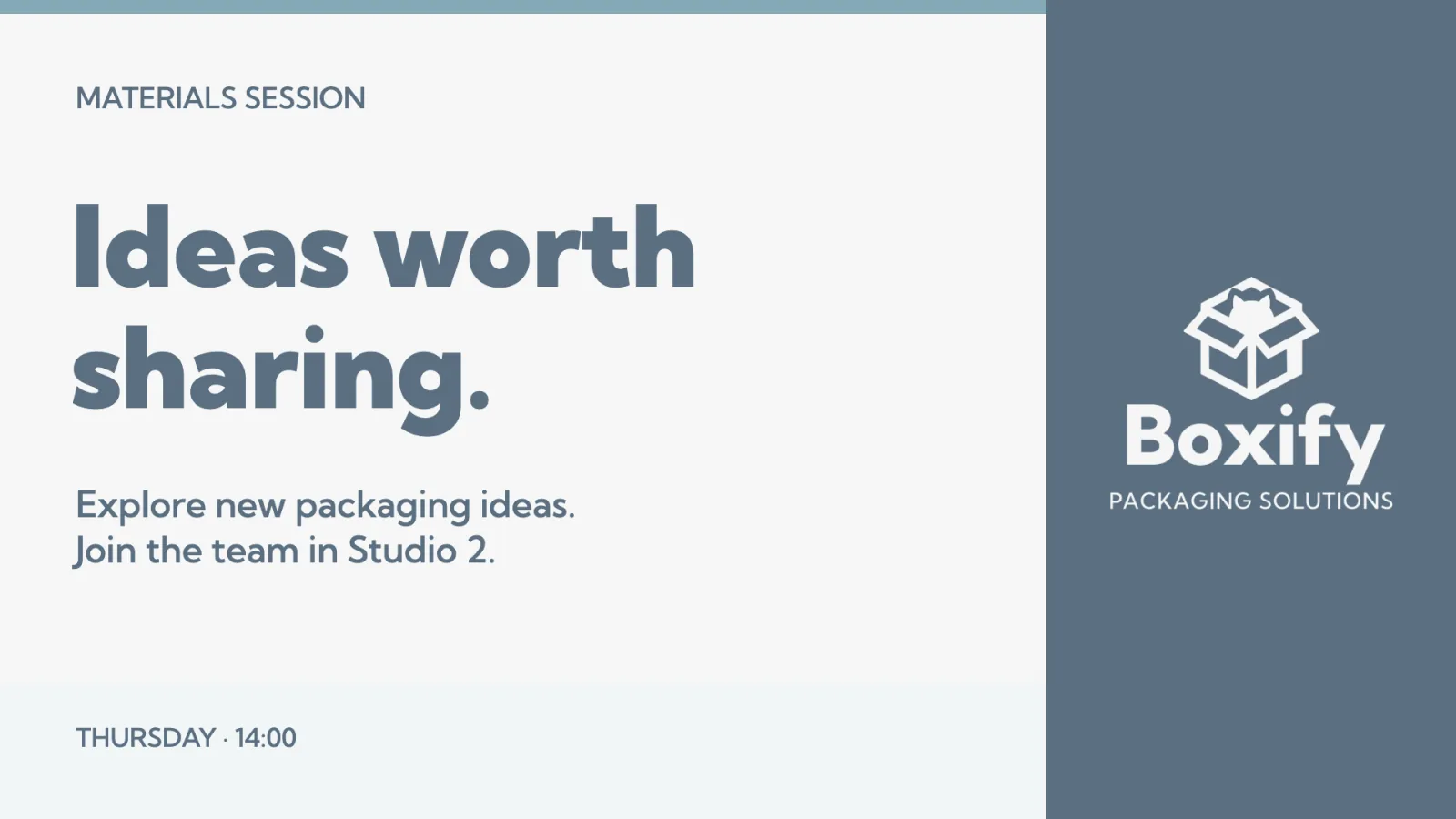
A template holds the reusable design. Smart media is the content created from it and published. Designers can expose supported text or image fields through Quick edit, allowing staff to maintain a message without changing its layout and styling. Store reusable assets in Media Library folders where teams can find them again.
This division supports several kinds of local communication:
- Municipal service teams can use a common announcement format.
- Stores can share an offer design while maintaining different local text.
- Healthcare teams can prepare consistent ward notices.
- Campus departments can keep messages recognizable without asking a central designer to create each one.
Quick edit explains how designers expose editable content. Choose a reusable template when future messages need the same structure; one-off content suits a design that will be used only once. Smart Media explains creating and publishing individual messages.
Start from a suitable existing design
Marketplace can provide a starting point for reception, dashboards, wayfinding, or public-information screens when a suitable product is available. Reuse it where the screen format and content structure fit. Marketplace explains acquisition, while Create template covers preparing a reusable design.
When the acquired item is a screen layout, check its channel assignments as well as its branding. The theme controls appearance; the channels determine which messages the screen receives.